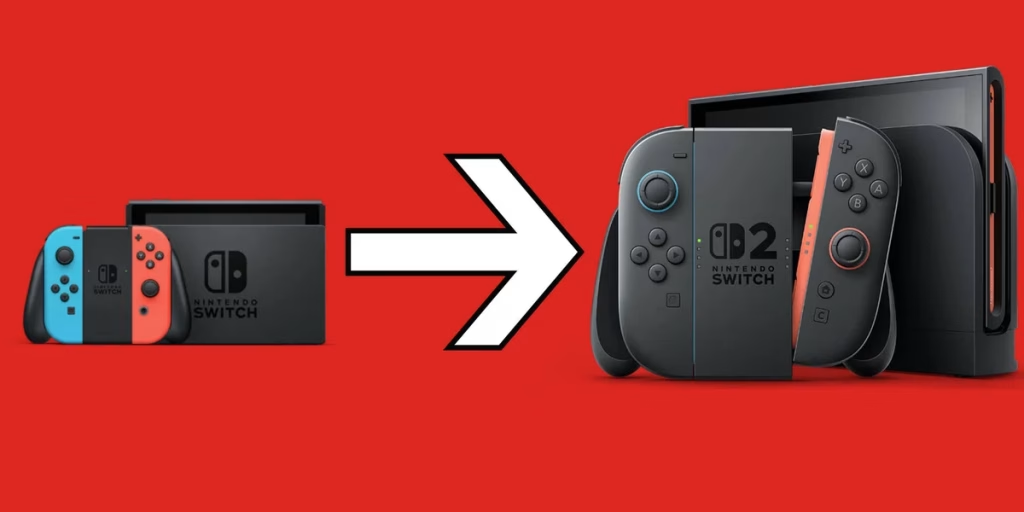
Learn the easiest ways to transfer screenshots, videos, and media between Nintendo Switch, Switch 2, and your MacBook. Step-by-step guide with expert tips.
Table of Contents
Nintendo Switch Media Transfer Methods Comparison
| Transfer Method | Speed | File Types | Device Compatibility | Difficulty |
|---|---|---|---|---|
| USB-C Cable | Very Fast | Screenshots, Videos | Switch 2 ↔ MacBook | Easy |
| microSD Card | Fast | All Media | Switch, Switch 2 | Easy |
| Wireless Transfer | Moderate | Photos, Videos | All Devices | Moderate |
| Cloud Backup | Slow | Save Data | All Devices | Easy |
The Easiest Way: USB-C Cable Method
If you’re using a Nintendo Switch 2, you’re in luck. The most straightforward approach is connecting your Switch 2 directly to your MacBook via USB-C cable. Here’s what you need to know:
Simply plug in the cable, and your MacBook will recognize the Switch 2 as an external drive. You can then drag and drop screenshots and video clips directly into your Mac’s folder. No software needed, no complicated steps—just plug and transfer.
Pro Tip: Always ensure your Switch 2 is charged before transferring large video files to avoid interruptions.
The Traditional Route: microSD Card
Original Switch users, this one’s for you. The microSD card method remains the gold standard for reliability. Remove the card from your Switch, insert it into a MacBook card reader, and you’re ready to go.
The beauty of this method? Maximum compatibility with both Switch models. Plus, you can store hundreds of screenshots without worrying about console storage limits.
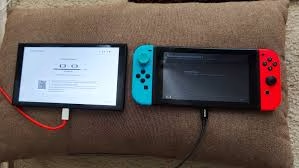
For detailed insights on Nintendo’s gaming technology evolution, check out the Wikipedia article on Nintendo Switch to understand the technical improvements between generations.
Don’t Forget Cloud Solutions
Nintendo Switch Online members have a built-in advantage: automatic cloud saves. While this doesn’t transfer media files, it ensures your game progress is always backed up.
Connect to your home Wi-Fi and use the wireless transfer feature for photos and videos. It’s slower than USB-C but incredibly convenient.
Why This Matters for Your Gaming Setup
Whether you’re a content creator capturing gaming moments or simply archiving memories, efficient media transfer is essential. Switch 2’s improved specs mean better quality videos—making proper transfer methods even more critical.
Learn more about optimizing your gaming setup on TechnoSports for advanced tips and tech reviews.
FAQs
Q: Can I transfer media wirelessly between Switch 2 and MacBook?
A: Directly, no. However, upload to cloud storage first, then download on Mac—works for smaller files and offers flexibility.
Q: Is my microSD card data safe during transfer?
A: Absolutely. microSD cards are incredibly durable. Just avoid unplugging during active transfers, and you’re protected.