Hytale might be incredibly fun out of the box, but several default settings actually work against you—cluttering your screen, making combat harder to track, and slowing down your entire inventory flow. Here are five essential tweaks that transform the early-game experience from frustrating to smooth.
Table of Contents
Hytale Essential Settings Overview
| Setting | Location | Why Change It |
|---|---|---|
| Auto Hotbar Fill | Gameplay Settings | Prevents inventory clutter |
| Entity Health Bars | Interface Settings | Makes combat readable |
| HUD Toggle (F8) | Keybind | Clean screenshots & performance |
| Camera Perspective | Controls | Better spatial awareness |
| Ophidiophobia Mode | Gameplay > Accessibility | Replaces spiders with harmless creatures |
1. Disable Auto Hotbar Fill Immediately
By default, everything you pick up dumps directly into your hotbar—sticks, plant fiber, random stones, and loot all competing for those precious nine slots. Within minutes, your hotbar becomes an unorganized mess that forces constant manual sorting.
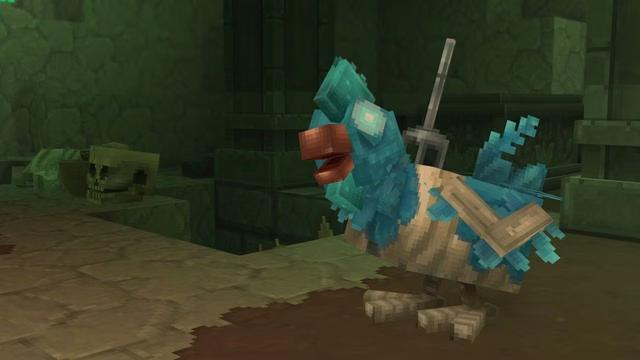
How to Fix: Navigate to Gameplay Settings and disable “Auto Hotbar Fill.” Items will now flow into your main inventory instead, keeping your hotbar reserved only for tools and items you manually place there. This single change makes Hytale feel exponentially more organized, especially during the resource-gathering heavy early game.
2. Enable Entity Health Bars for Combat Clarity
Hytale’s combat system is smooth and responsive, but the default settings hide crucial information—you’re essentially guessing when enemies are about to die. Without health bars visible, you can’t tell if the skeleton needs one more hit or five.
How to Fix: Go to Interface Settings and enable “Entity Health Bars.” Now you’ll see exactly how much damage you’re dealing and when enemies are close to defeat. This matters tremendously when facing multiple foes or deciding whether to press an attack or retreat. The guesswork disappears, replaced by tactical decision-making based on actual data.
3. Master the HUD Toggle (F8 Key)
Hytale includes a brilliant built-in feature most players never discover—pressing F8 cycles through three HUD visibility states:
- Full HUD: Everything visible (default)
- Minimal HUD: Only essential elements
- No HUD: Completely clean screen
Why It Matters: Beyond taking gorgeous screenshots, the minimal HUD setting can actually improve performance on lower-end systems by reducing the number of UI elements the game needs to render constantly. You can also quickly check your surroundings without interface obstruction during exploration.
4. Utilize All Camera Perspectives
The default third-person view is comfortable, but Hytale gives you complete camera control that many players ignore. Switch perspectives freely using the camera toggle key:
Third-Person Back View: Standard exploration angle with clear frontal visibility
Front-Facing Camera: Perfect for checking your character’s appearance or examining builds from the front without awkward rotation
First-Person View: Tighter view for precision mining and combat in confined spaces
Each perspective serves specific purposes. Building? Use front camera to see what you’re creating. Mining underground? First-person provides better accuracy. The flexibility becomes invaluable once you develop the habit of switching contextually.
5. Enable Ophidiophobia Mode (Spider Replacement)
Not everyone wants to encounter giant spiders while exploring a sandbox survival game. Hytale thoughtfully includes an accessibility option that completely changes the experience without affecting gameplay balance.
How to Access: Navigate to Gameplay > Accessibility and enable “Ophidiophobia Mode.” This replaces all snake and spider models with Hatworms—harmless, less threatening creatures that maintain the same gameplay properties but eliminate the visual anxiety trigger.
This isn’t about making the game easier—enemies retain identical stats and behaviors. It simply makes exploration more enjoyable for players with arachnophobia or ophidiophobia, demonstrating Hytale’s commitment to inclusive design.
Bonus: World Rule Customization
For players seeking greater challenge or wanting to tailor difficulty precisely, Hytale allows granular world rule adjustments without needing separate hard mode presets:
Adjustable Parameters:
- Enemy spawn rates and density
- Death penalties (item retention vs. full drop)
- Resource availability and respawn timers
- Day/night cycle length
- Hunger depletion speed
Access these by selecting your world and navigating to the World Rules configuration. These changes let you tune the survival experience to match your preferred difficulty level—whether you want a relaxed building-focused session or a punishing survival gauntlet.
Additional FPS Counter (Update 2)
The January 24, 2026 patch added an “FPS Counter Overlay” option under General > User Interface settings. Enabling this displays your current frames per second in the top-right corner, helping you identify performance issues and test which settings impact your game’s smoothness.
For more Hytale optimization guides and gameplay tips, explore our sandbox gaming coverage and PC gaming settings guides.
Server-Specific Settings
If you’re running or playing on a dedicated Hytale server, administrators can configure additional parameters through the config.json file:
- Default game mode (Creative vs. Adventure)
- Maximum player count and whitelist controls
- Backup frequency and directory settings
- Authentication mode (online vs. offline)
- View distance (default is 384 blocks, roughly 24 Minecraft chunks)
Server hosts access these through their server control panels under the Config Files tab, though changes require server restarts to take effect.
Why These Matter
These aren’t minor tweaks—they’re fundamental improvements that address actual friction points in Hytale’s default experience. The developers clearly designed flexibility into the system, but didn’t necessarily choose the most user-friendly defaults for every situation.
Taking five minutes to adjust these settings transforms your first hours from “Why is my inventory so messy?” and “How close is that enemy to dying?” into smooth, readable gameplay where systems work with you instead of against you.
Lighthouse Quest Stalling Your Progress? Here’s How to Farm Crystals Fast in Cult of the Lamb
Frequently Asked Questions
Do these setting changes affect game performance or just quality of life?
Most are pure quality-of-life improvements, but disabling Auto Hotbar Fill reduces inventory management overhead, and toggling HUD elements (F8) can provide minor performance gains on lower-end systems by reducing rendered UI elements.
Can I change world rules on an existing save or only when creating new worlds?
You can modify world rules on existing saves—navigate to your world selection screen, select the world, and access World Rules configuration; changes apply immediately without requiring a new save file.