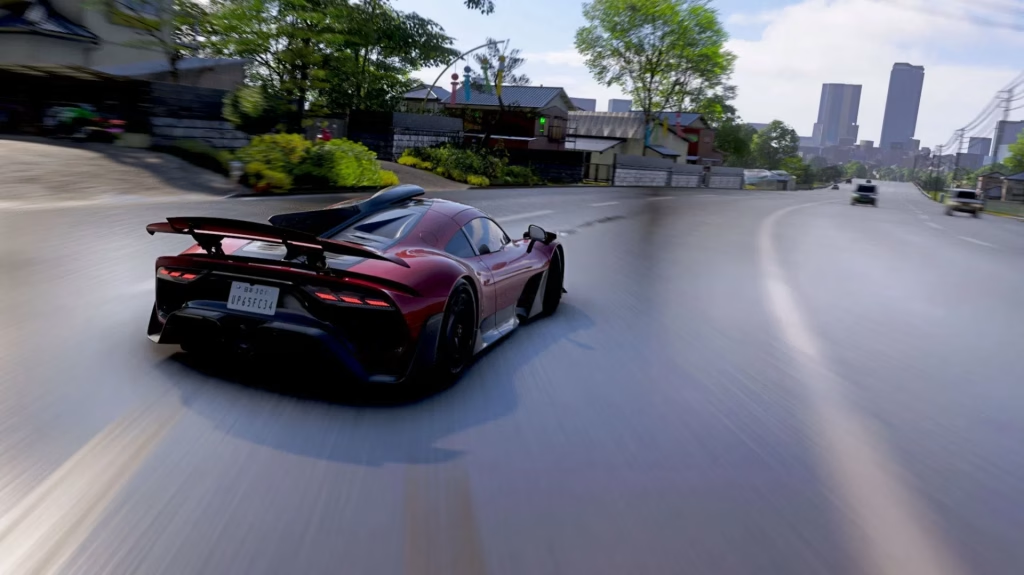
One crash. One corrupted file. Hundreds of hours gone. If you’ve spent weeks collecting rare Aftermarket cars, building your dream Estate, and conquering every Touge Battle in Forza Horizon 6, the thought of losing it all to a corrupted save is genuinely terrifying. Given that the game involves dozens of hours of car collection, Estate building, and race progression, protecting your save is essential.
The good news? Backing up your Forza Horizon 6 save on PC is straightforward — once you know where to look. The bad news? The save files are buried deep inside a hidden, permission-locked Windows folder that most players don’t even know exists.
This guide walks you through every step, every method, and the one critical mistake that can permanently corrupt your save.
Table of Contents
Why You NEED to Backup Your Save in Forza Horizon 6?
Forza Horizon 6 does not offer a manual save option. The game auto-saves continuously, which means if something goes wrong — a crash during save, a power outage, or a corrupted update — there’s no “previous save” to fall back on.
| Risk | What Happens | How Backup Helps |
|---|---|---|
| Game crash during auto-save | Save file corrupted — progress lost | Restore from backup instantly |
| Windows update forces restart | Mid-session save could be incomplete | Clean backup ready to restore |
| Mod conflict (if using mods) | Save may become unreadable | Restore pre-mod save |
| Cloud sync failure | Local and cloud saves desync | Manual backup takes priority |
| Accidental deletion | Entire save gone | Backup folder is your insurance |
| New update introduces bugs | Progress may rollback or corrupt | Pre-update backup is your safety net |
Forza Horizon 6 Save File Location on PC
Forza Horizon 6 save data on PC is stored in a hidden system folder buried within the Windows Apps directory. A lot of newer PC games, especially those distributed through the Microsoft Store or Xbox app, store their save data in the WindowsApps or related system directories.
Microsoft Store / Xbox App Version
| Detail | Info |
|---|---|
| Save Location | C:\Users\[YourUsername]\AppData\Local\Packages\Microsoft.624F8B84B80_8wekyb3d8bbwe\SystemAppData\wgs\ |
| Folder Type | Hidden + Permission-locked |
| File Format | Container files (no .sav extension) |
| Cloud Sync | ✅ Xbox Cloud Saves (automatic) |
Steam Version
| Detail | Info |
|---|---|
| Save Location | C:\Users\[YourUsername]\AppData\Local\ForzaHorizon6\SaveData\ OR Steam Cloud folder |
| Alternative | C:\Program Files (x86)\Steam\userdata\[SteamID]\[AppID]\remote\ |
| Cloud Sync | ✅ Steam Cloud (automatic) |
⚠️ The exact folder names may vary slightly depending on your Windows version, game version, and installation path. The long alphanumeric string (like Microsoft.624F8B84B80_8wekyb3d8bbwe) is unique to Forza Horizon 6’s package ID.
Method 1: Manual Backup (Best for Full Control)
This is the most reliable method because you control exactly what gets saved and when. Manual backup is the most reliable way to protect your progress because it creates a local copy that you control entirely.
Step-by-Step Guide
| Step | Action | Details |
|---|---|---|
| 1 | Close Forza Horizon 6 completely | Make sure the game is fully closed — not minimized or in the background. Check Task Manager (Ctrl+Shift+Esc) to confirm no FH6 process is running. |
| 2 | Show hidden files in Windows | Open File Explorer → View tab → Check “Hidden items” box. On Windows 11, click View → Show → Hidden items. |
| 3 | Navigate to the save folder | Go to the save location path listed above for your version (Microsoft Store or Steam). |
| 4 | Gain folder permissions (Microsoft Store only) | Right-click the wgs folder → Properties → Security tab → Edit → Add your user account → Grant Full Control. |
| 5 | Copy the entire save folder | Select the wgs folder (MS Store) or SaveData folder (Steam) → Right-click → Copy. |
| 6 | Paste to a safe backup location | Create a folder like D:\FH6_Backups\2026-06-11\ and paste. Use date-stamped folders for organization. |
| 7 | Verify the backup | Check that the backup folder size matches the original. Files should be several MB to several hundred MB depending on your playtime. |
Recommended Backup Locations
| Location | Pros | Cons |
|---|---|---|
| External HDD/SSD | Survives OS reinstalls | Must remember to plug in |
| USB Flash Drive | Portable + cheap | Easy to lose physically |
| Second Internal Drive (D:) | Always available | Lost if PC dies |
| Cloud Storage (OneDrive/Google Drive) | Accessible anywhere | Upload time for large saves |
| NAS (Network Storage) | Best redundancy | Requires setup |
Method 2: Steam Cloud Backup (Steam Version Only)
If you’re playing the Steam version, Steam Cloud automatically syncs your saves — but you should still verify it’s working and know how to access the local copy.
How to Verify Steam Cloud Is Active
| Step | Action |
|---|---|
| 1 | Open Steam → Library → Right-click Forza Horizon 6 |
| 2 | Select Properties → General tab |
| 3 | Ensure “Keep games saves in the Steam Cloud” is ✅ enabled |
| 4 | Check Steam Cloud status at the bottom of the game page |
How to Access Steam Cloud Saves Locally
Your Steam Cloud saves are also stored locally at: C:\Program Files (x86)\Steam\userdata\[YourSteamID]\[FH6AppID]\remote\
You can copy this folder as an additional manual backup even if Steam Cloud is active — belt and suspenders.
Method 3: Xbox Cloud Saves (Microsoft Store Version)
The Microsoft Store version automatically syncs saves to Xbox Cloud. This happens transparently every time you close the game. However, Xbox Cloud saves have a known limitation: if your local save is newer than the cloud version and a sync conflict occurs, you may be forced to choose between the two — and picking wrong can lose progress.
| Xbox Cloud Save Tips | Action |
|---|---|
| Always close the game properly | Don’t force-quit or kill the process |
| Wait for the sync icon | After closing, wait for the cloud sync indicator before shutting down your PC |
| If prompted to choose local vs. cloud | Always pick the NEWER save unless you know it’s corrupted |
| Manual backup supplements cloud | Xbox Cloud is good but not infallible — do both |
Method 4: Automated Backup Script (Advanced Users)
For players who want hands-off protection, you can create a simple Windows batch script or use backup software to automatically copy your save folder at scheduled intervals.
Simple Batch Script Example
Create a .bat file with the following logic:
| Step | Script Action |
|---|---|
| 1 | Define source path (FH6 save folder) |
| 2 | Define destination path (backup folder with timestamp) |
| 3 | Use robocopy or xcopy to mirror the save folder |
| 4 | Schedule via Windows Task Scheduler to run daily or on game close |
For non-technical players, free tools like FreeFileSync or SyncBack Free can automate this with a visual interface — no coding required.
How to RESTORE a Backup Save
Restoring is just as important as backing up. Here’s how:
| Step | Action | Important Notes |
|---|---|---|
| 1 | Close Forza Horizon 6 completely | Confirm via Task Manager |
| 2 | Disable internet (temporarily) | Prevents cloud sync from overwriting your restore |
| 3 | Navigate to the current save folder | Same path as before |
| 4 | Delete or rename the current save | Rename to wgs_corrupted as a safety measure |
| 5 | Copy your backup into the save folder | Paste the backed-up wgs or SaveData folder |
| 6 | Re-enable internet | Allow the game to resync |
| 7 | Launch Forza Horizon 6 | If prompted about cloud sync, choose “Use local save” |
| 8 | Verify progress | Check your car collection, Estate, and race progress |
⚠️ CRITICAL: If you restore a backup while connected to the internet, Xbox/Steam Cloud may try to overwrite your restored local save with the corrupted cloud version. Always disable internet FIRST, restore the save, then reconnect.
The One Mistake That Corrupts Your Save
Never force-close Forza Horizon 6 during an auto-save. The game auto-saves frequently — after races, purchases, Estate edits, and menu navigation. If you kill the process via Task Manager or experience a power outage during one of these auto-save moments, the save file can become partially written and permanently corrupted.
| DO | DON’T |
|---|---|
| ✅ Close the game via the in-game menu | ❌ Alt+F4 during a loading screen |
| ✅ Wait for the save icon to disappear | ❌ Force-quit via Task Manager |
| ✅ Let the game fully close before shutting down PC | ❌ Pull the power cord during gameplay |
| ✅ Backup before installing game updates | ❌ Assume cloud saves are enough |
How Often Should You Backup?
| Event | Backup? | Why |
|---|---|---|
| Before any game update | ✅ Always | Updates can introduce save-breaking bugs |
| After a major milestone (100 cars, Estate completion) | ✅ Always | Protect irreplaceable progress |
| Before installing mods | ✅ Always | Mods can corrupt saves |
| Weekly (casual players) | ✅ Recommended | Peace of mind |
| Daily (hardcore players) | ✅ Ideal | Maximum protection |
| Before Windows updates | ✅ Always | OS updates can affect game files\ |
Forza Horizon 6 Save Structure — What’s Inside
Understanding what’s in the save folder helps you verify your backups are complete:
| File/Folder | Contains |
|---|---|
| Profile data | Settings, controls, HUD preferences |
| Career progress | Race completions, Horizon Stories, Championships |
| Car collection | All owned vehicles, tunes, liveries |
| Estate data | All Estate builds, decorations, custom tracks |
| Online progress | Seasonal challenges, online rankings |
| Garage layouts | Custom garage displays for all 7 houses |
| Photo mode saves | Any saved in-game photography |
The total save folder size can range from 50 MB for new players to several hundred MB for completionists with extensive Estate builds and car collections.
Troubleshooting Common Backup Issues
| Issue | Cause | Fix |
|---|---|---|
| “Access Denied” when copying save folder | Windows permissions on MS Store folder | Take ownership via Properties → Security → Edit |
| Backup folder is empty | Hidden files not enabled | Enable hidden files in File Explorer → View |
| Save doesn’t restore properly | Cloud sync overwrote local restore | Disable internet before restoring |
| Game doesn’t recognize restored save | Wrong folder path or incomplete copy | Verify folder structure matches original exactly |
| Save file size is 0 KB | Corrupted during copy | Re-copy from backup — don’t use the 0 KB file |
| Steam Cloud conflict prompt | Local and cloud saves differ | Choose the save with MORE data (usually larger file) |
For a complete overview of Forza Horizon 6 and its features, visit the official Forza Horizon 6 Wikipedia page.
Pro Tips for Save File Safety
- Create a backup shortcut on your desktop — One click to open the save folder makes regular backups effortless
- Use date-stamped folders — Name backups like
FH6_Backup_2026-06-11so you always know which version is most recent - Keep at least 3 rotating backups — Don’t overwrite the same backup every time; keep the last 3 versions
- Test your backup once — Restore it on a different Windows user profile to confirm it works before you actually need it
- Backup before EVERY game update — This is the single most important habit you can develop
- Consider a monthly offsite backup — Upload one backup per month to cloud storage for disaster recovery
👉 Also Read: Latest Gaming News & Guides on TechnoSports
👉 Also Read: Trending Tech & Gaming Stories This Week
FAQs
Q: How do I restore a Forza Horizon 6 backup save without losing it to cloud sync?
Close the game completely, temporarily disable your internet connection, delete or rename the current save folder, paste your backup save into the original location, then re-enable internet and launch the game. If prompted about cloud sync, always choose “Use local save” to prevent the cloud from overwriting your restored backup.